


Skins in Counter-Strike 2 (CS2) aren’t just cosmetic — they represent style, status, and in many cases, real-world value. But before you buy, trade, or open cases, it’s important to know how to inspect CS2 skins properly. Many beginners make the mistake of purchasing a skin that looks good on the market, only to discover in-game that its float value, wear level, or stickers make it far less appealing.
In this guide, we’ll walk you through how to inspect CS2 skins in-game, on the Steam Market, and even without owning them, plus explain key factors like rarity, float, and third-party tools. If you’re a trader looking to maximize profit or a player who just wants the perfect look, learning how to inspect skins the right way will save you money and help you make smarter choices.
If you’re new to trading, check out our beginner’s guide to the CS2 skin economy to learn how value is determined.
Contents
- 1 Understanding Skin Inspection in CS2
- 2 Key Features to Check When Inspecting a Skin (Float, Rarity & Patterns)
- 3 Step-by-Step Guide: How to Inspect Skins in CS2 Inventory
- 4 Inventory Inspection Process (In-Game)
- 5 How to Inspect CS2 Skins on the Steam Market
- 6 Maximizing Your Skin Review Process
- 7 Float Value Explained: How Wear Levels Affect CS2 Skins
- 8 Skin Styles and Patterns in CS2 (With Examples)
- 9 Using Third-Party Tools to Preview and Compare CS2 Skins
- 10 How to Use the Inspect Skins CS2 Workshop Map
- 11 Common Problems When Inspecting Skins in CS2 (and How to Fix Them)
- 12 Dealing with Display Problems or Missing Skins
- 13 Final Checklist: Inspect CS2 Skins Before You Buy or Trade
- 14 CS2 Skin Inspection FAQ: Float Value, Wear, Pattern ID, and Steam “Inspect in Game”
- 15 How do I inspect skins in CS2 in-game from my inventory?
- 16 How do I inspect CS2 skins on the Steam Community Market before buying?
- 17 How do I inspect a CS2 skin I don’t own (CS2 inspect link / inspect server)?
- 18 What should I check when comparing CS2 skins for trading (float, pattern, stickers, price)?
Understanding Skin Inspection in CS2
Counter-Strike 2 offers many game skins for operators, knives, gloves, and weapons. The game also has different stickers that you can apply to the desired weapon. This action changes the appearance of the weapon significantly because you can stick several of them at the same time. You can read more about this in our All About Stickers in CS2 (New Sticker System) article.
Players can get skins by playing CS2, opening containers, or buying them from other players in the marketplace. However, they can encounter problems, so the Blix team has prepared a step-by-step guide for our readers on properly inspecting CS2 skins.
It’s crucial for every player to find a skin they like. Some players prefer stylish designs, while others prefer minimalist ones. Some players enjoy trolling, such as using a skin that produces loud sounds on the radio, making it difficult for other players to hear enemy movements.
Before investing in a skin, it is very important to understand its rarity and quality. StatTrack skins count the player’s kills from a specific weapon; their price is usually higher. You can also look at price charts to understand the skin’s price history.
If you’re planning to trade, our CS2 skin trading safety guide covers everything you need to know to keep your items secure.
Key Features to Check When Inspecting a Skin (Float, Rarity & Patterns)
Paying attention to Skin Quality and Rarity when inspecting or purchasing skin is essential.
| Skin Quality (Wear Level) | Float Range | Description / Visual Condition | Impact on Price |
|---|---|---|---|
| Factory New (FN) | 0.00 – 0.07 | Looks almost brand new, minimal scratches | Highest price |
| Minimal Wear (MW) | 0.07 – 0.15 | Slight wear, small visible marks | High price |
| Field-Tested (FT) | 0.15 – 0.37 | Noticeable scratches and fading | Mid-range price |
| Well-Worn (WW) | 0.37 – 0.45 | Heavy scratches and faded look | Lower price |
| Battle-Scarred (BS) | 0.45 – 1.00 | Extremely worn and damaged | Cheapest option |
Skin Quality is divided into Factory New, Minimal Wear, Field Tested, Well Worn, and Battle Scarred. These values determine the amount of scratches on the weapon and its overall appearance. Depending on the quality, the price of the skin will increase or decrease.
| Skin Rarity | Color Tier (Steam) | Notes |
|---|---|---|
| Consumer Grade | White | Most common, lowest value |
| Industrial Grade | Light Blue | Slightly more valuable than Consumer Grade |
| Mil-Spec Grade | Blue | First tier of rare skins, often sought after |
| Restricted | Purple | More exclusive, moderate value |
| Classified | Pink | High rarity, expensive |
| Covert | Red | Among the rarest skins, very valuable |
| Contraband | Yellow | Extremely rare, only one Contraband skin exists in CS2 |
Rarity includes Consumer Grade, Industrial Grade, Mil-Spec, Restricted, Classified, Covert, and Contraband skins. Speaking of Contraband, there’s only one Contraband skin in the game. As with Skin Quality, the higher the Rarity, the higher the price.
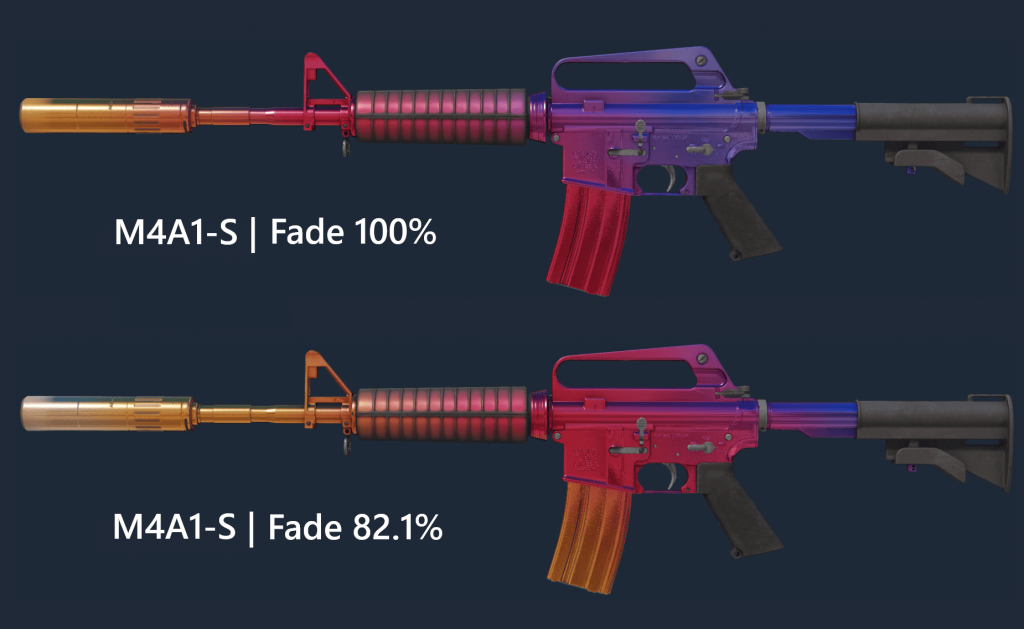
A Pattern ID (paint seed or pattern index) is basically the skin’s “layout code.” It’s a number — most often 0–999 — that decides how the artwork gets wrapped around the weapon model.
That’s why two skins with the same name and even the same wear tier can still look surprisingly different: they’re running on different seeds, so the colors and shapes land in different places.
This matters most for finishes where the pattern isn’t “fixed,” and collectors pay for the best-looking versions:
- Case Hardened: some seeds roll those famous Blue Gem – style playsides, and that can push the price way above a normal Case Hardened. The most popular seed is #661.
- Fade / Marble Fade / Doppler: the seed can change what you actually see (how much of each color shows, where it sits, and which side looks best). Premiums here vary a lot by item and market, but the core idea is the same: the look is the value.
Quick way to remember it: Float = condition. Pattern ID = which visual version you got.
Step-by-Step Guide: How to Inspect Skins in CS2 Inventory
In this section, we will discuss methods for inspecting skins in your inventory and skins that you do not own but would like to see in-game. There are several ways to inspect skins.
Stay up to date with every release — our CS2 cases and souvenir packages article covers the newest items added to the game.
Inventory Inspection Process (In-Game)
First, let’s break down the default path to view the skins already in your inventory:
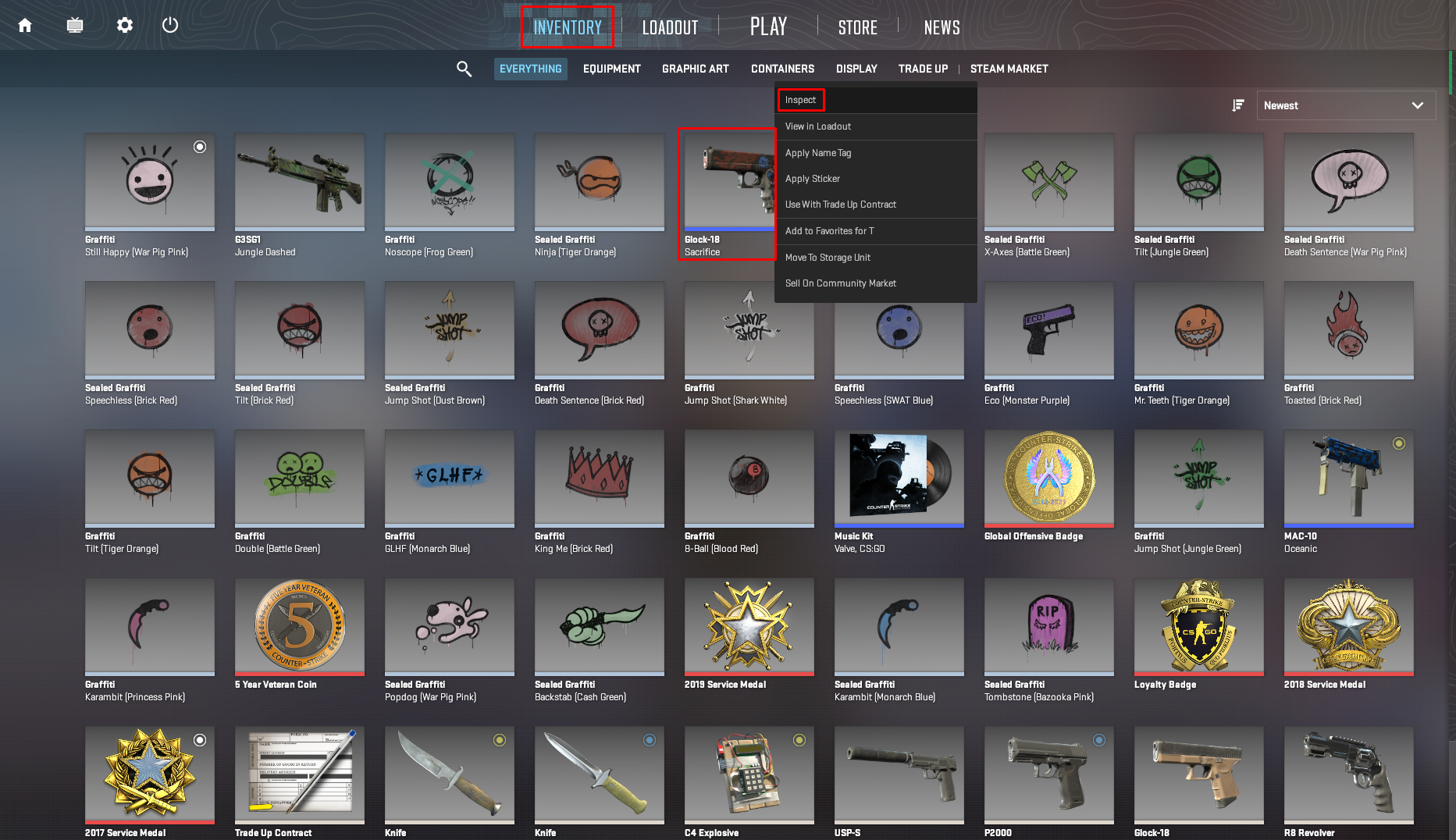
- Launch CS2
- Proceed to Inventory
- Choose the skin in the Everything sub-section (you can use filters)
- Left-click on the selected skin, then Inspect
- Extra: first-person and player model inspect modes can be chosen at the bottom left of the screen.
How to Inspect CS2 Skins on the Steam Market
Using the Steam Market, you can run a CS2 skin inspection directly from the listing page. Just click ‘Inspect in Game’ and CS2 will launch, showing you the weapon in real time. This feature is perfect for traders who want to confirm float value, stickers, or patterns before purchasing.
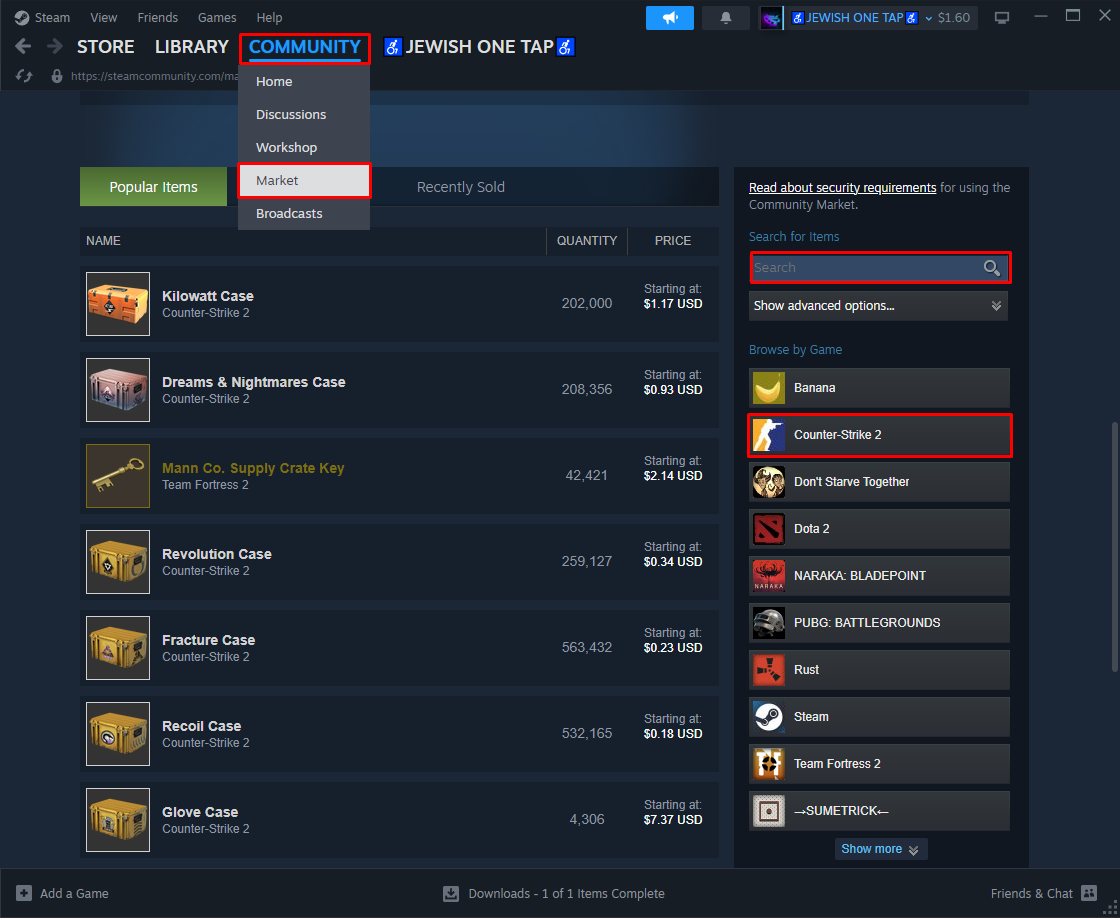
- Launch Steam
- Go to Community > Market section
- Scroll down and find the Search for items section
- Enter the name of the desired skin, then Search
- Select the skin
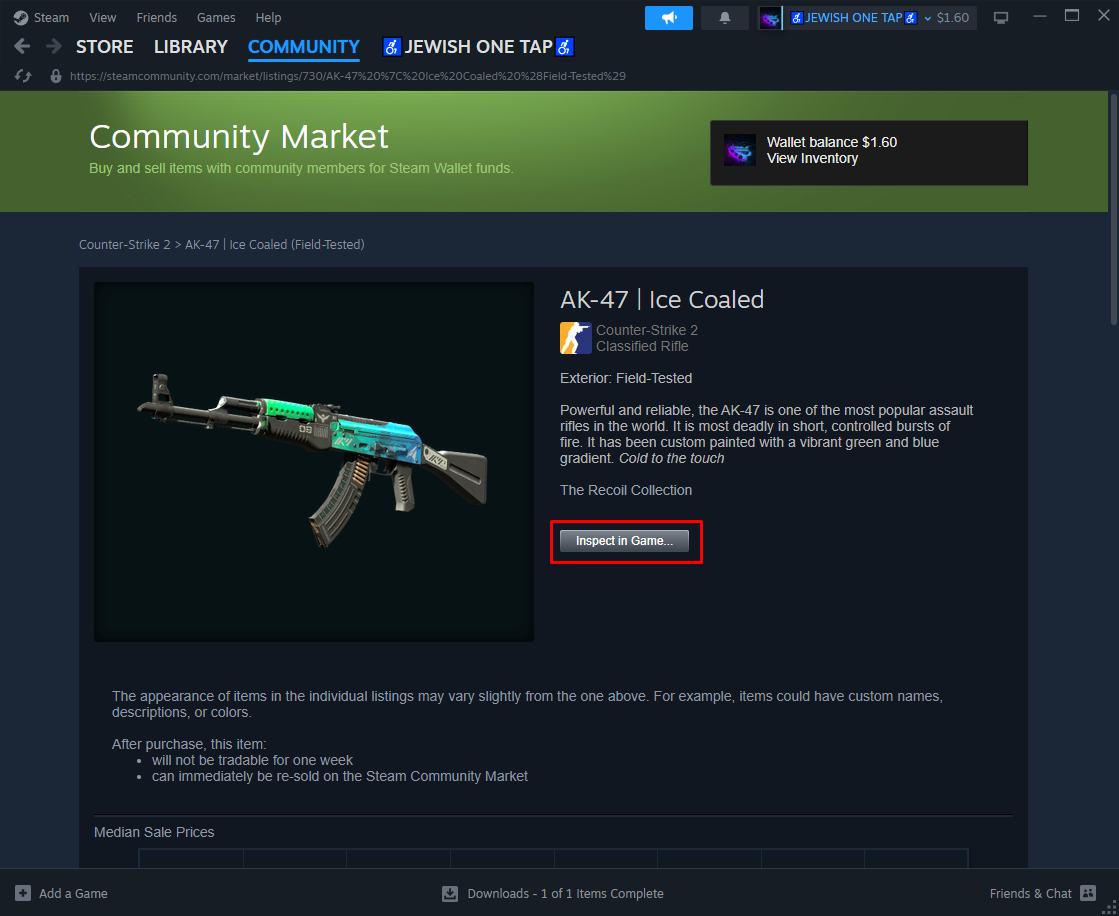
- Press the Inspect in Game button
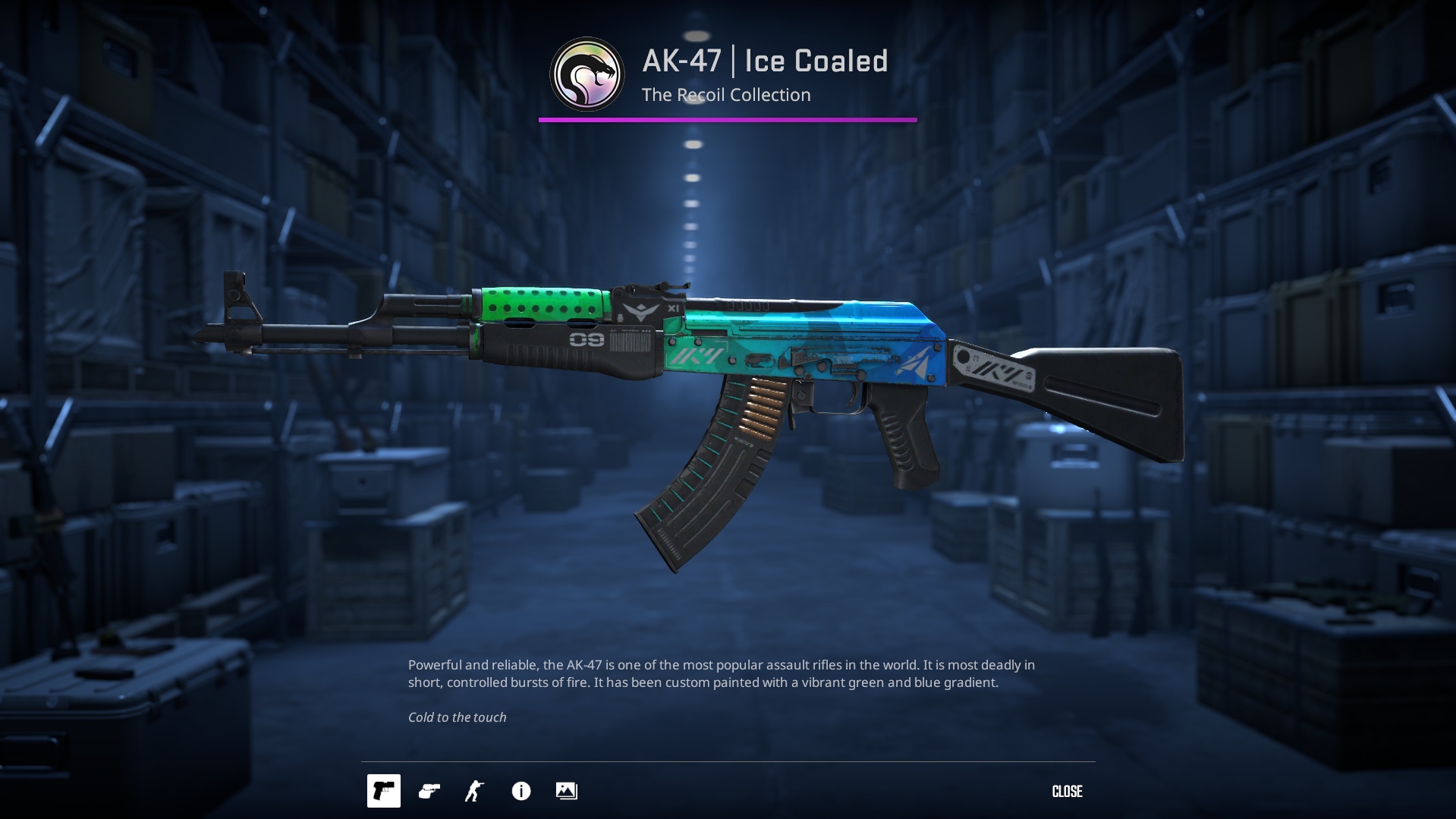
- CS2 will be launched to show the skin.
At the bottom, you’ll find a section with extra tools for inspecting CS2 skins.
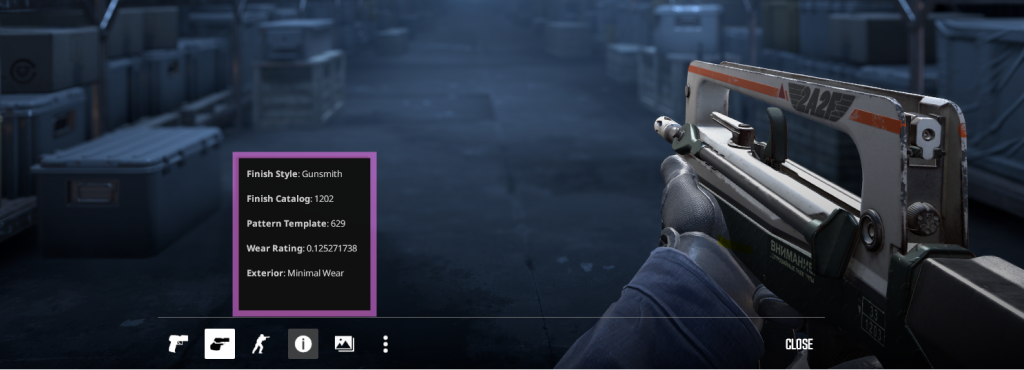
The most useful tool here is the “i” icon. It shows the skin’s finish details (Finish Style and Finish Catalog), Pattern Template (paint seed), Exterior, and the exact Float value.
Sticker Value: What to Check
Sticker premiums mostly come from clean condition + good placement. In inspect, confirm the sticker art is fully intact (no fading, missing edges, or “washed-out” look), then judge if the stickers sit in visible positions and actually improve the skin’s look — bad placement or messy combos usually get priced like “no stickers.”
- Check for scrapes (faded or patchy artwork reduces value)
- Check visibility (stickers in main view vs. hidden slots)
- Check craft quality (matching theme and colors vs. random mix)
- Check angles (rotate — some crafts look good only from one side)
- Check pricing logic (pay extra only for clean + good craft)
Maximizing Your Skin Review Process
For a quick view of all the skins available for CS2 – you can use the platform csgostash.com. The site has many filters and contains all information about the skin, including its price, release date, rarity, quality, and so on.
Float Value Explained: How Wear Levels Affect CS2 Skins

If you’re wondering how to check CS2 skin float value, it’s simple: every skin comes with a float between 0.00 and 1.00. You can see it directly in-game, or use third-party tools like CSFloat to check exact values before buying
Every skin in CS2 is assigned a Float Value or Wear at the time of creation, whether it’s dropped or crafted.
If you’re learning about floats, don’t miss our CS2 float value and pattern guide — it shows how small details can change a skin’s value by hundreds of dollars.
Skin Styles and Patterns in CS2 (With Examples)
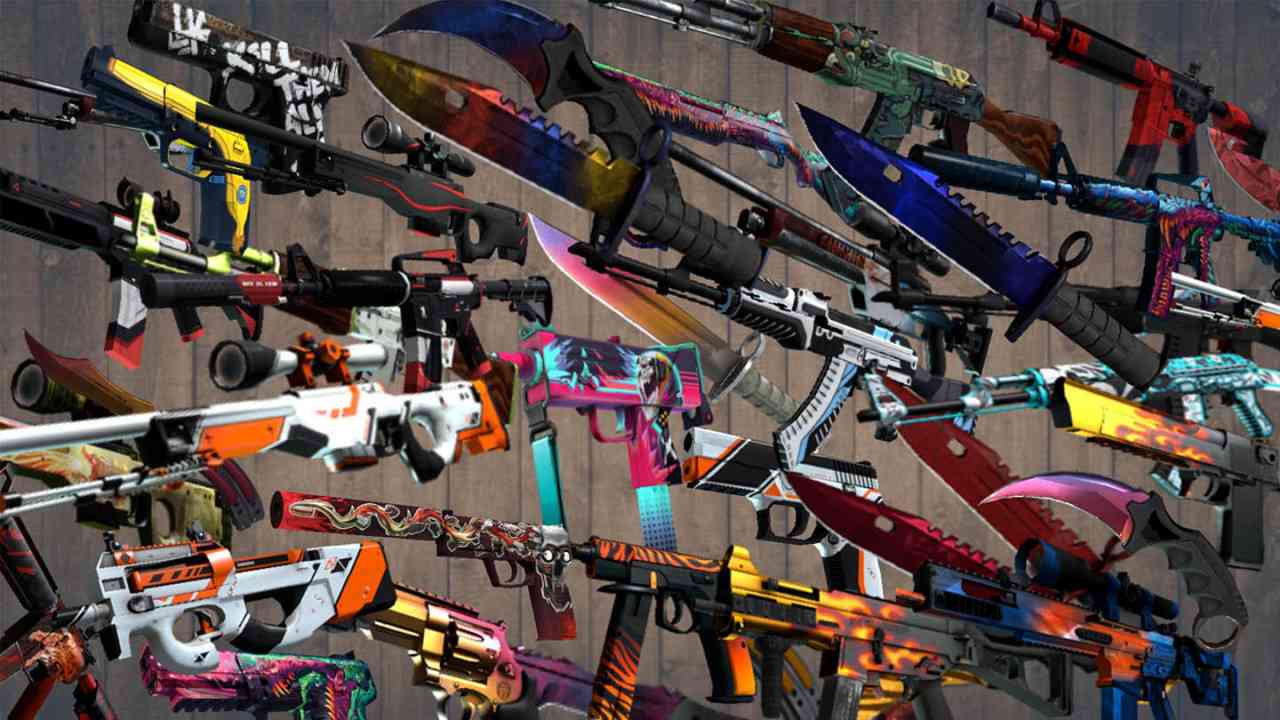
Each skin differs in general appearance, contrast, and brightness. There are several skin styles in Counter-Strike 2:
- Custom Paint Job – you can see the absolute design freedom for such skins.
- Anodized – these finishes’ shine is much brighter than other skins.
- Solid Color – the weapon skins are divided into four predefined sections.
- Patina – is a thin layer that forms on metallic surfaces.
- Gunsmith – offers a stylish aging effect that combines Patina features with a Custom Paint Job.
- Hydrographic – such design incorporates a vibrant palette of four colors and an eye-catching pattern.
- Spray-Paint – it has four colors and a pattern, which are applied from three sides.
Want to play like the pros? Explore our best CS2 gear guide for the monitors, mice, and keyboards they trust.
Using Third-Party Tools to Preview and Compare CS2 Skins
Some players prefer faster options, so here are the best third-party tools to inspect CS2 skins without opening the game: Blix.gg (browse full collections), CS.Money (check float values).
- Blix.gg – A complete skin database with filters for rarity, collection, release date, and price ranges. Great for browsing entire sets.
- CS.Money – is the CS2 Trading Site, that lets you exchange, buy, sell skins safely, and inspect skins online.
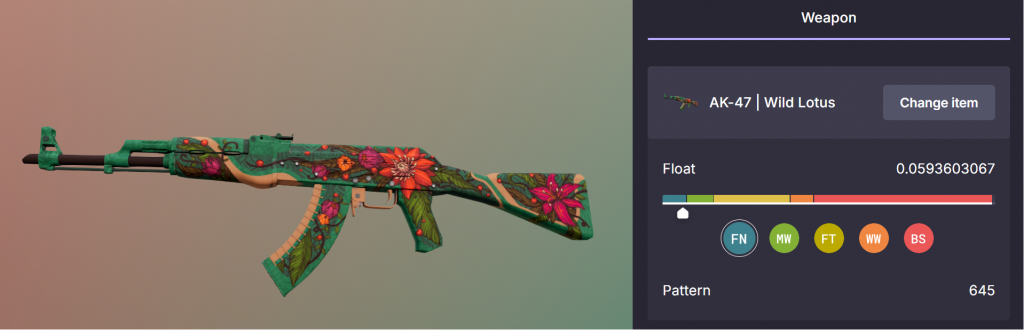
CS.Money isn’t only about trading skins, but the site also has a great web inspecting tool, which helps you understand the float of a current item or just to play with different floats to see how it looks like on 3D model.
These tools often provide more information than the Steam Market, such as float history, price graphs, and pattern variations (e.g., rare Doppler phases or case-hardened blue gems). This makes them essential for collectors and traders looking to maximize value.
How to Use the Inspect Skins CS2 Workshop Map
You’ll preview any CS2 skin + glove combo in-game using the Inspect Skins Workshop map. First of all, we need to download it to your CS2 Workshop library to start playing the map.
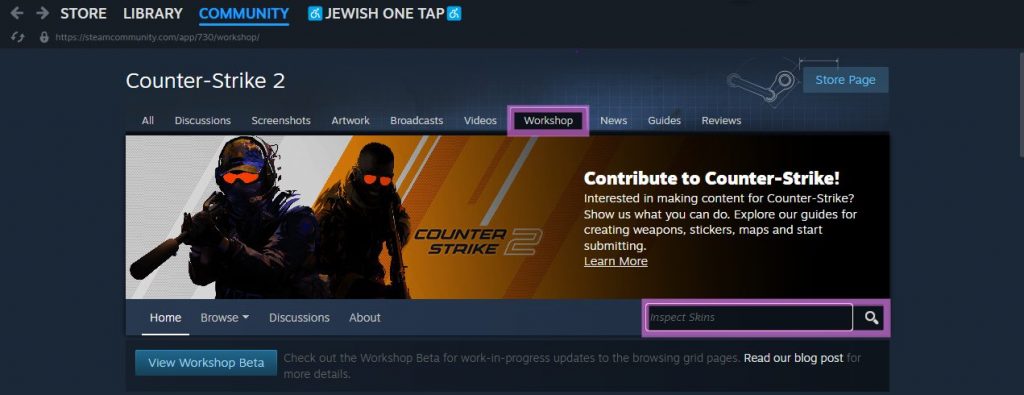
- Launch Steam
- Proceed to CS2 Steam Workshop
- Type “Inspect Skins” in Search
- Select Inspect Skins map from the selected list
- Scroll the page a bit down and hit the Subscribe button
After you subscribe, the map is added to your library automatically. You can then launch it in CS2.
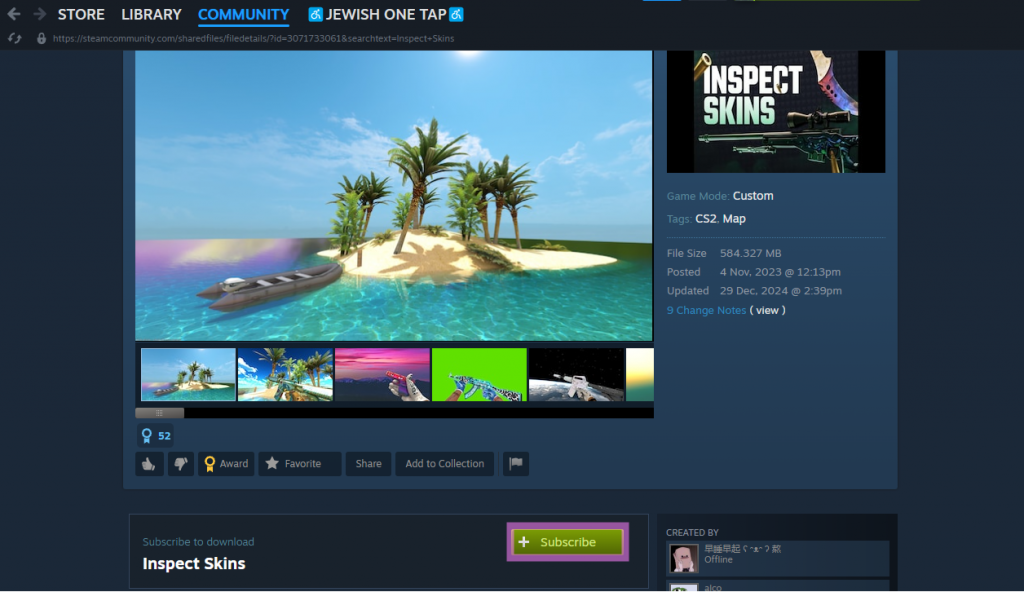
To start playing the map, we need to find the server in CS2 console and join it.

- Launch CS2
- Open Console (default binding is “~”)
- Type “connect 185.52.54.190:27015“
- Wait for the connection to the server
When the loading of the map ends, you’ll spawn to select between CT and T (keep in mind that hands and gloves differ for both sides). Now we proceed to the next step.
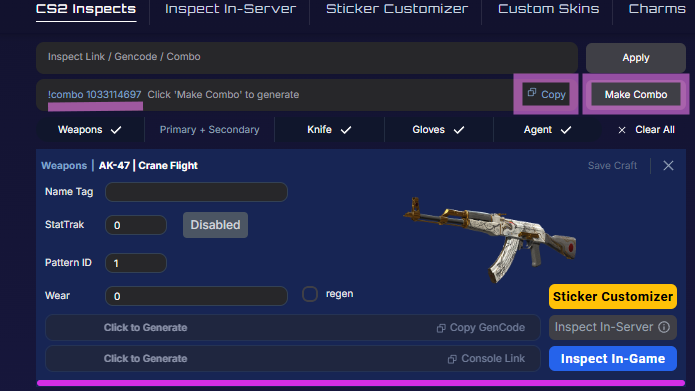
- Visit cs2inspects and create Combo
- Copy the created Combo
- Return to CS2 and paste the combo code into chat
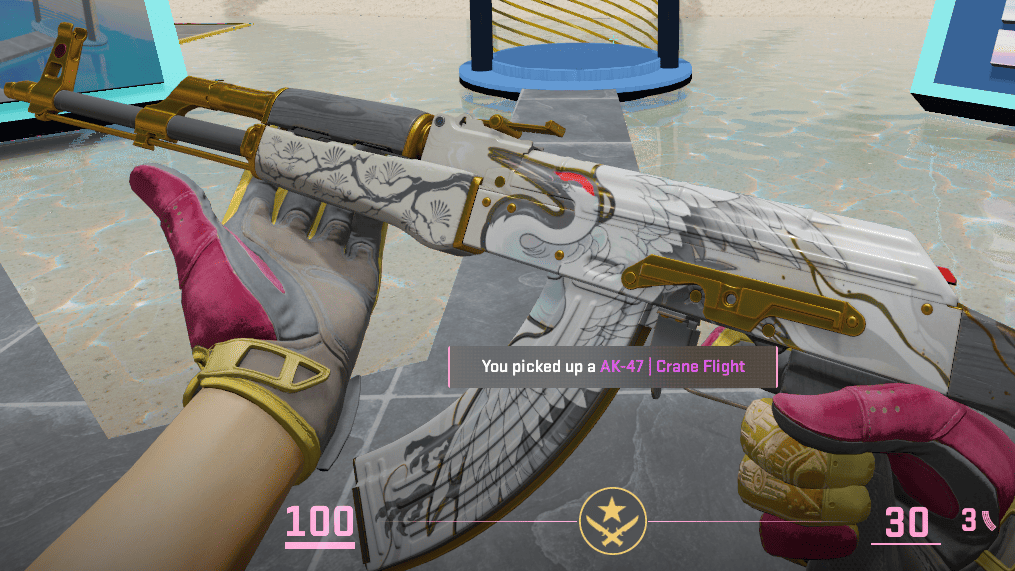
We took AK-47 | Crane Flight and Sport Gloves | Occult as an example of combo for import. After pasting the generated code to the game, skins will appear in CS2 in seconds.
Common Problems When Inspecting Skins in CS2 (and How to Fix Them)
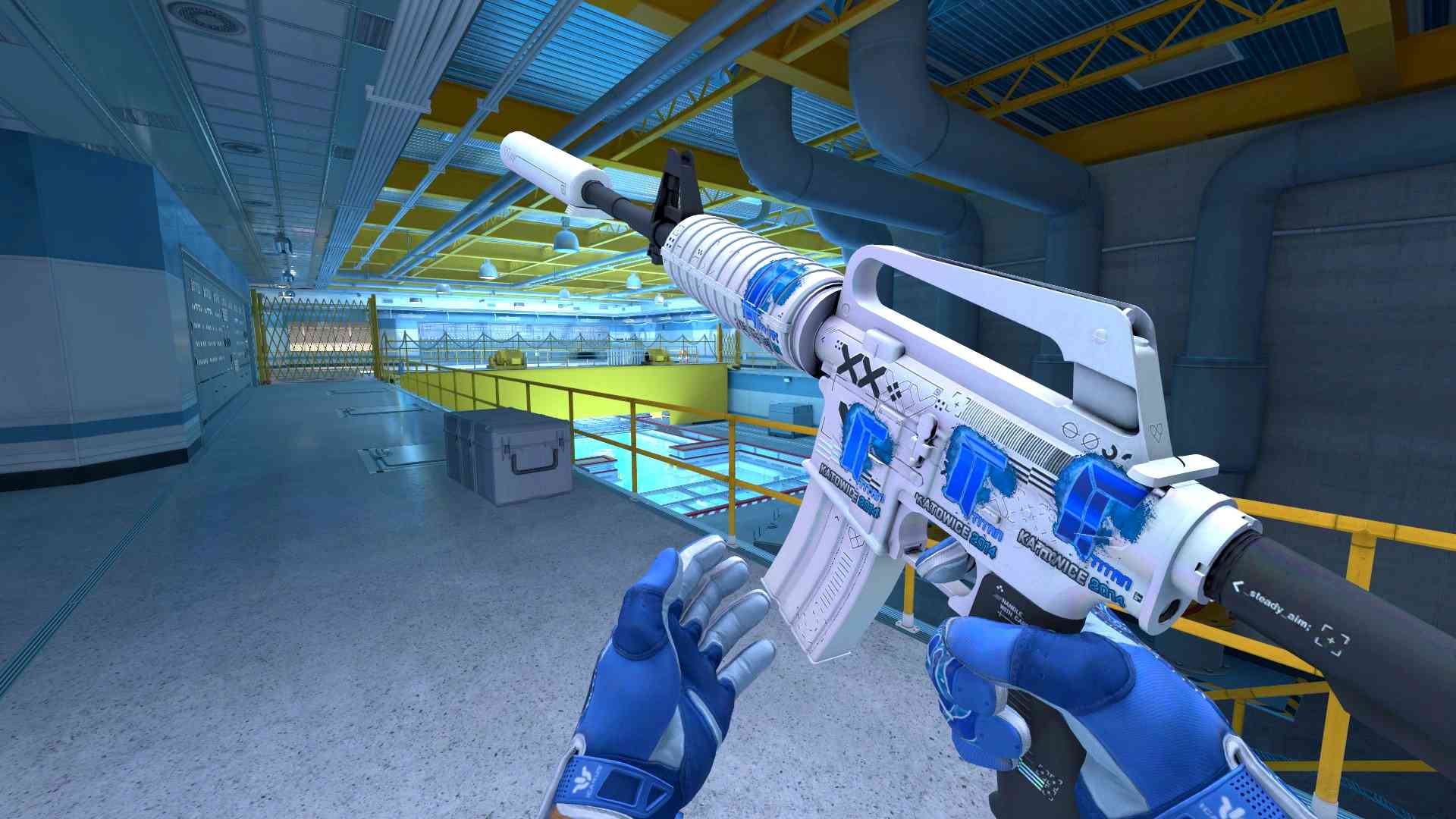
In CS2, inspecting weapons in the inventory menu is so hard on the GPU that it causes the game to crash. Lowering the FPS limit in the CS2 menu should help. There’s a discussion of such a problem on steamcommunity.
Some skins may look blurry in matches, but they are great in the Inspection menu. Here’s the link to Reddit where you can find helpful comments.
Dealing with Display Problems or Missing Skins
1. If you encounter the issue, try verifying the game files through Steam:
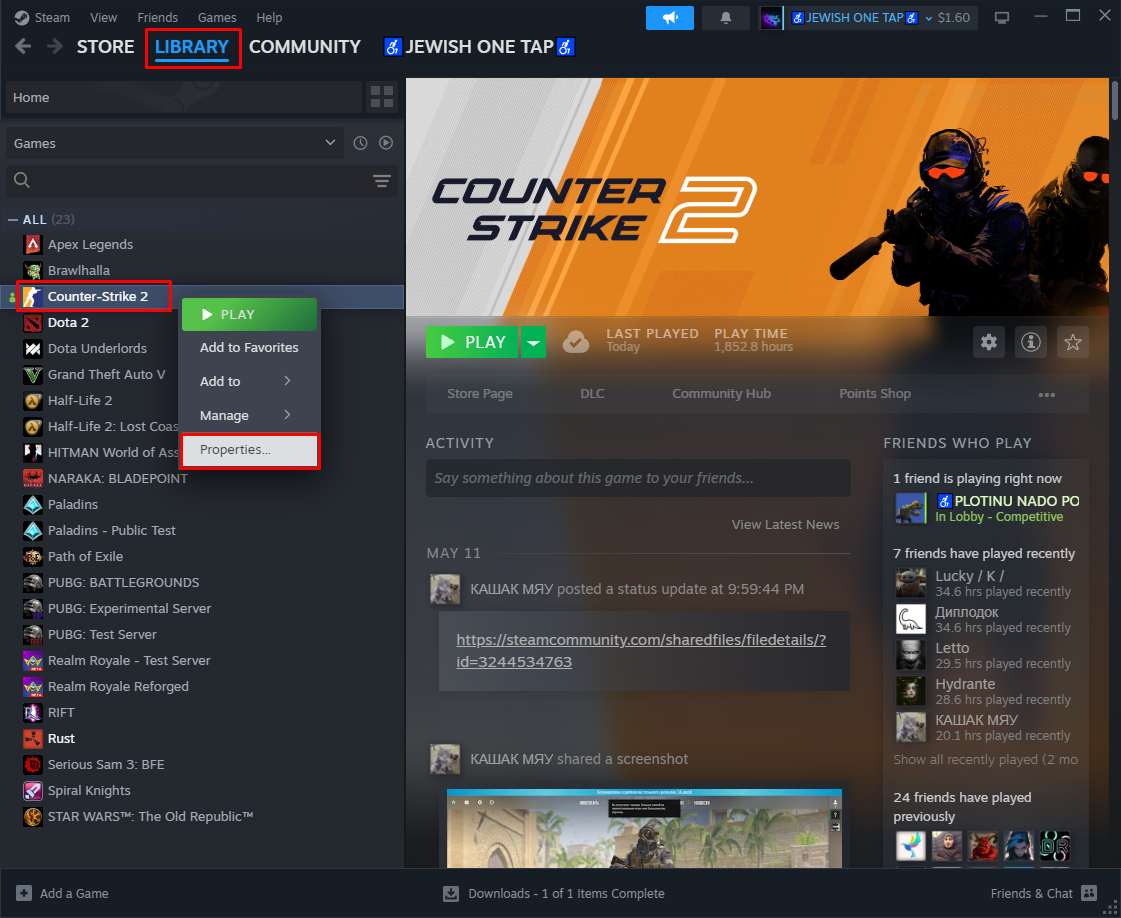
- Launch Steam
- Right-click on CS2, select Properties
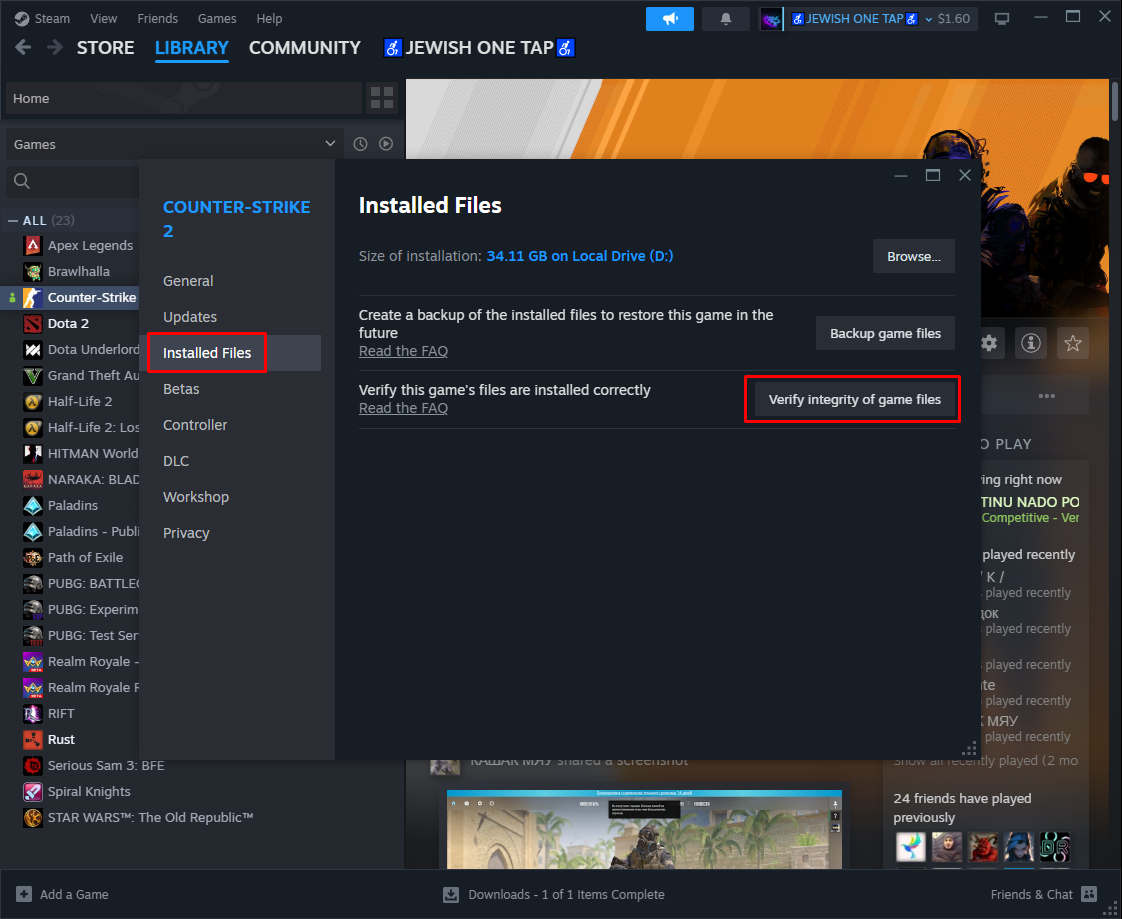
- Navigate to the Installed Files section
- Select Verify Integrity of Game Files
2. The last way is to Reinstall CS2 (if this step doesn’t help, then you should contact Steam Support regarding the situation):
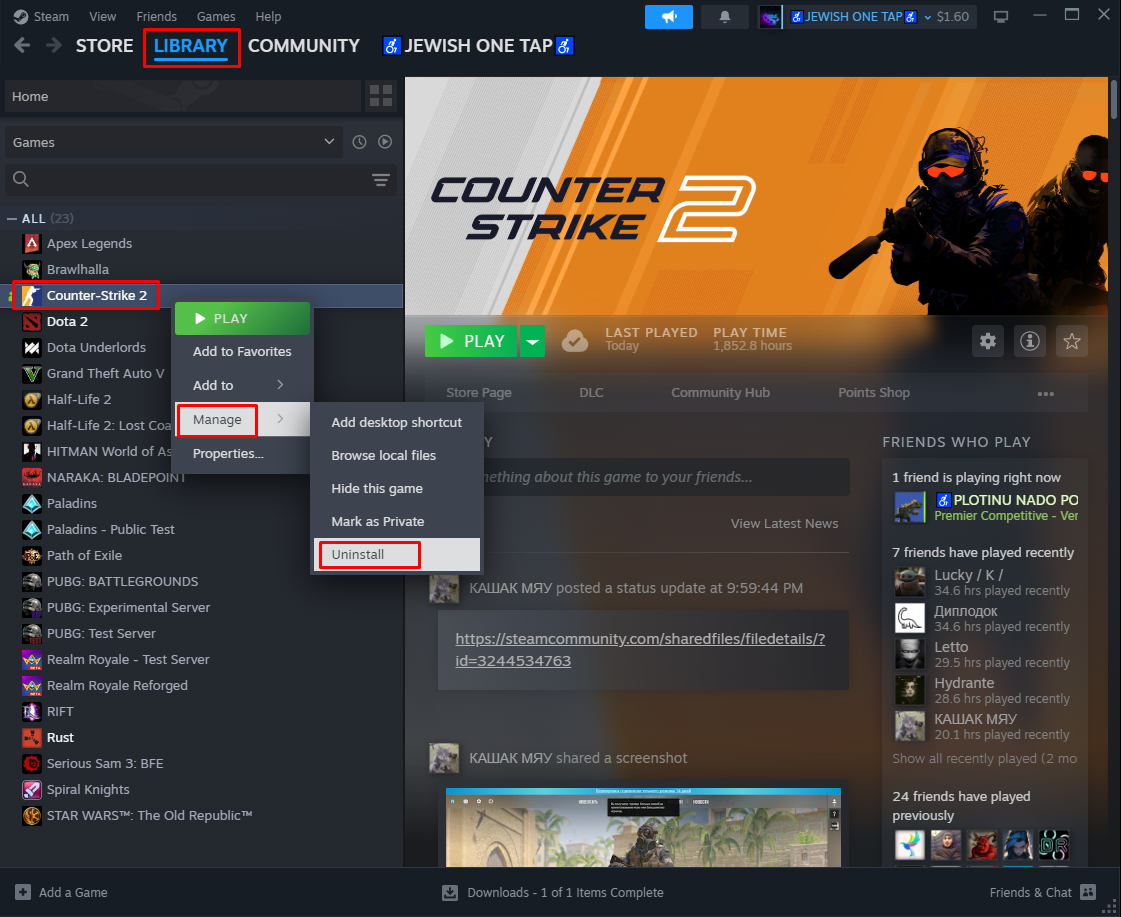
- Launch Steam
- Proceed to Library > CS2
- Right-click on CS2 > Manage > Uninstall
- Restart the computer
- Launch Steam > CS2
- Start downloading the game.
Final Checklist: Inspect CS2 Skins Before You Buy or Trade
Inspecting CS2 skins isn’t just cosmetic — it’s how you avoid bad buys and make smarter trades. When you check float (wear), rarity, pattern, and sticker placement, you see what market thumbnails hide and you’re far less likely to overpay.
Use the method that fits your situation: in-game inspection for skins you own, Steam Market “Inspect in Game” for pre-purchase checks, and third-party databases like Blix.gg when you want faster browsing and comparisons.
Before you confirm any purchase or trade, do this quick pass:
- Float
- Pattern
- Stickers (placement + scrapes)
- Price history
That 30-second routine saves real money.
CS2 Skin Inspection FAQ: Float Value, Wear, Pattern ID, and Steam “Inspect in Game”
How do I inspect skins in CS2 in-game from my inventory?
Open CS2 → Inventory → select a weapon skin → Inspect. In the inspect view, rotate the model and check Exterior (wear tier), float value, and sticker placement + sticker scrapes to confirm the real in-game look.
How do I inspect CS2 skins on the Steam Community Market before buying?
On a Steam Community Market listing, click “Inspect in Game” to preview the exact item in CS2 before purchase. This lets you verify the exact float value, Exterior, stickers, and pattern (not just the market thumbnail).
How do I inspect a CS2 skin I don’t own (CS2 inspect link / inspect server)?
Use a CS2 inspect link (often called an inspect in-game link) from a marketplace/listing, then open it via “Inspect in Game” or paste it where your tool/site instructs to launch the preview. If you’re using a workshop option, you can also join an inspect server inspect skins map to preview weapon + gloves combos without owning the items.
What should I check when comparing CS2 skins for trading (float, pattern, stickers, price)?
Compare: Exterior + exact float, Pattern ID (important for Case Hardened, Fade, Marble Fade, Doppler phases), sticker placement + scrapes, and price history. Within the same wear tier, a lower float usually looks cleaner and can sell for more.
